
Verdict


Key Specifications
- Review Price: £51.83
Productivity is always important, and employers are often keen to help their staff by providing them with the technology to help them make their lives easier – dual monitors is a good example. Yet, despite the increasing use of two displays in the workplace, you’ll often still find people using the cheapest OEM mouse they can find. Why?
Not wanting to get into that conundrum any further, it suffices to say that there are significant benefits to investing in a good quality mouse for use at home or work – or working from home should that be what you do. Whether it’s through reducing the risk of RSI, or simply making work quicker and more efficient, and at around £50, Logitech’s MX Revolution is certainly worth serious consideration.
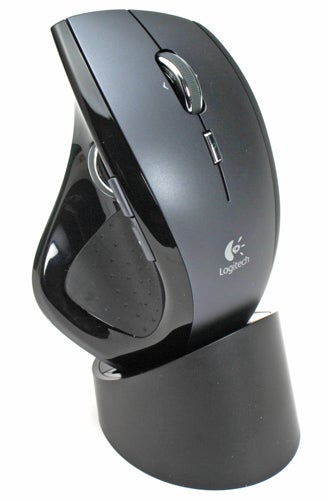
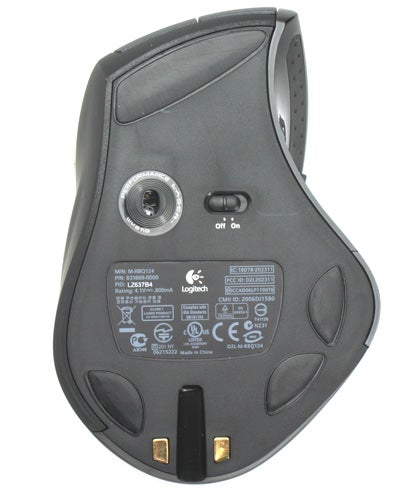
As a wireless mouse, the MX Revolution comes packaged with a charger stand, power adapter, a USB receiver and Logitech’s SetPoint software for configuring and customising button operations. Once you’ve peeled away the packaging, charged up the mouse and installed the software it’s hard not to be instantly impressed.
Designed for the right-hander only, the left side features a large thumb shaped groove with rubber gripping moulded into shiny black plastic. The main body is finished in a fetching dark grey matt plastic, whilst the right hand side is cut of one large piece of black rubber with small indents for the fingers. One hesitates to call a mouse sexy, but this is as close as you’re likely to get. Certainly, all the elements come together beautifully. Even the charging stand is neat and plugs into the mains so your mouse charges when you’re not using your PC.
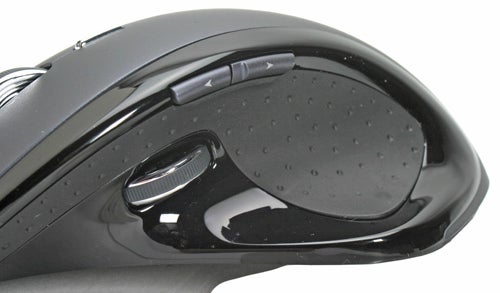
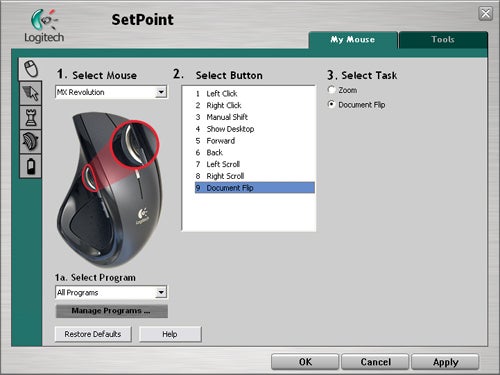
The MX revolution is, however, far more than table top eye candy and features a number of important and useful innovations, the first of which is the thumb wheel. Located toward the left, the thumb wheel is designed primarily for flipping between documents. Pushing it backward or forward brings up the Document Flip window, where you can then use the wheel to select the program you want and select it by pushing inward.
You can also flip quickly between documents by pushing inward at the same time as pushing forward or back, and used either way it’s a great feature for those who have lots of programs open at the same time.
Indeed, if you use two screens it’s also a great way to move between programs on different screens with as little hassle as possible. Using the SetPoint software you can also set it to zoom in and out and this can be made to activate when a particular program, such as Photoshop, is in operation.
Just above the thumb wheel are forward and back buttons, which are handy for Internet browsing and up top are the usual assortment of left and right buttons, a scroll wheel and a One-Touch Search button.
The One-Touch Search button is another neat addition, enabling you to select a word or text and press the button to instantly search the Internet or your computer. The only complaint about this features is that, as of now, you can only choose between using Yahoo or Google for your searching needs.
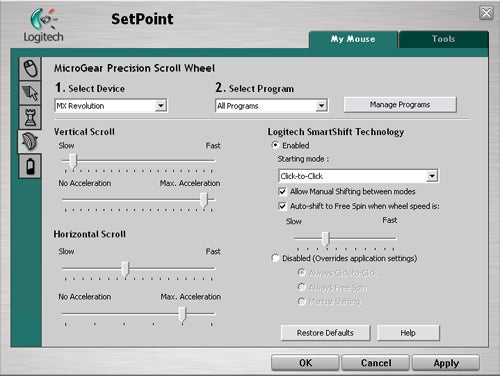
Neat though both these features are, Logitech have developed one feature that’s far more significant. By now we’ve all become familiar with the now ubiquitous scroll wheel, and though very useful Logitech has decided, not before time, to move the concept forward a little. As such, the scroll wheel on the MX Revolution features two different scrolling modes; click-to-click, the normal operation we’re all used to, and a new mode Logitech are calling Free Spin.
This feature is designed for navigating large Word and Excel documents, and it works a treat. Whilst scrolling slowly the mouse will use click-to-click, giving you plenty of control, but when scrolling faster the wheel will switch automatically to the free spin mode where the wheel will spin without resistance resulting it super fast scrolling speeds.
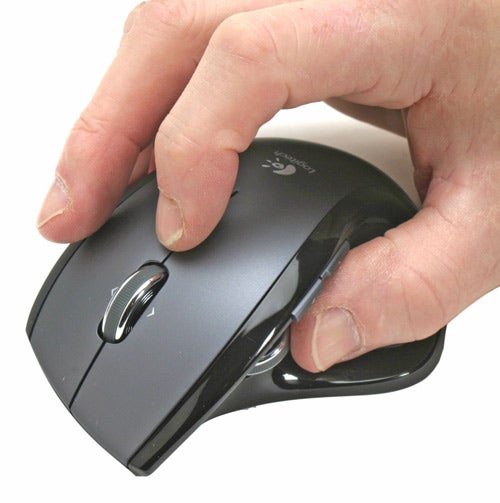
The beauty of this addition is you can scroll through hundreds of pages in seconds, and the wheel is well weighted and easy to control thanks to the rubbery strip running down the middle.
Logitech’s Set Point software also enables you to set how fast you must scroll before Free Spin becomes active and you can also manually switch between modes by pressing down on the scroll wheel. Further options include choosing scrolling speed and acceleration, whilst you can also do the same for horizontal scrolling which is activated by pushing the wheel left or right.
The single criticism one can have with the scroll wheel is the result of having two levels of the depth, with the second reserved for the standard middle click operation. This mechanism is somewhat clunky, and it requires a good deal more force than is natural to operate. Whether this affects you is entirely up to how often you use the middle click, though I found it a little awkward since the middle click opens and closes tabs in Firefox.
Indeed, this is the only genuine criticism to be found with the Revolution MX and everything else about the mouse is exactly as you’d expect. Ergonomically, the styling is just right and the mouse sits perfectly in the hand. None of the buttons ever feel out of reach, and the build quality is up to Logitech’s typically high standards.
Although the weight can’t be adjusted this mouse feels very balanced, and it glides effortlessly across the majority of surfaces. Indeed, so lightly does it glide that you can move it around accurately with a single finger and, were it not for its stylish looks, I’d have been temped to use it as an air hockey puck – just for kicks.
On a full charge the mouse is good for three to four days of use, and the average user will get a good deal closer to a week or more. Wireless range is excellent too, and you’ll rarely find an occasion where the range isn’t sufficient unless you prefer to view your computer screen through binoculars from the office car park.
”’Verdict”’
If you’re willing to spend a little extra, and anyone who spends a lot of time on the PC should do, then the Revolution MX is a serious contender for your cash. Great features, brilliant design and a quality finish make it a great investment and one that will keep paying you back for a long time.
Trusted Score
Score in detail
-
Value 9
-
Features 9


Editorial independence
Editorial independence means being able to give an unbiased verdict about a product or company, with the avoidance of conflicts of interest. To ensure this is possible, every member of the editorial staff follows a clear code of conduct.

Professional conduct
We also expect our journalists to follow clear ethical standards in their work. Our staff members must strive for honesty and accuracy in everything they do. We follow the IPSO Editors’ code of practice to underpin these standards.
Editorial independence
Editorial independence means being able to give an unbiased verdict about a product or company, with the avoidance of conflicts of interest. To ensure this is possible, every member of the editorial staff follows a clear code of conduct.
Professional conduct
We also expect our journalists to follow clear ethical standards in their work. Our staff members must strive for honesty and accuracy in everything they do. We follow the IPSO Editors’ code of practice to underpin these standards.