

Mobile Reviews
Check out all our new mobile reviews and previews, covering everything from the latest and greatest flagship iPhones down to the newest affordable Android handsets to hit the scene. Every product with a score has been tested by one of our team of tech experts to ensure our buying advice is accurate and based on real world use.
-

Garmin Lily 2 Review
Score
The Lily 2 shines with its elegant and discreet design, reliable activity tracking, and decent battery life
-
-
-
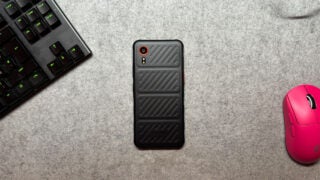
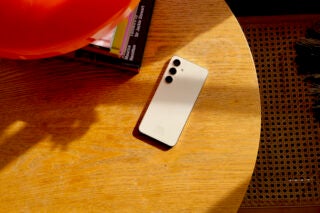
One of Samsung's most durable phones to date, with IP68 dust and water resistance and MIL-STD-810H ratings to boot.
-
Hollyland Lark M2 Review
Score
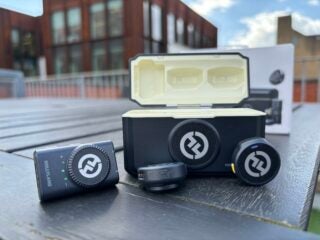
The easiest plug and play mic to use
-
Oppo Reno 11F 5G Review
Score
A decent phone at an affordable price
-
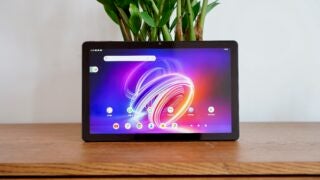
As a cheap tablet offering, the Acer Iconia Tab P11 is merely adequate.
-
A solid and budget-friendly tracker
-
The Galaxy Tab Active 5 is the ideal rugged tablet to take to work or even up a mountain, with the right compromises on offer.
-
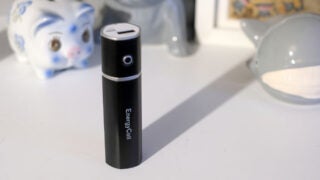
A perfectly sound form of insurance for your phone battery during long days that's let down by poor effiency and slow charging.
-
The Anker Nano is a capable mid-tier power bank with a standout design and a few handy features.
-
The Anker MagGo Power Bank 6.6K is an excellent iPhone dock, but only an okay battery pack.
-
The Anker Prime is a powerful, high capacity battery pack willing to be called “le chonk,” “el grande” or “captain mAh.”
-
Xiaomi 14 Review
Score
The Xiaomi 14 has a lot going for it, from a great camera system to an overall size smaller than most of the best Android phones.
-
The Anker MagGo 10K offers MagSafe compatibility, impressive efficiency and modern mod-cons in a nice little package
-
Poco X5 Pro Review
Score
The Poco X5 Pro is a solid mid-ranger with great performance, though it might leave you wanting more
-
A number of notable improvements
-
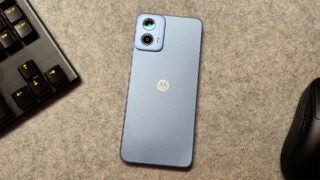
The latest option from Motorola that looks to offer 5G connectivity on the cheap.
-
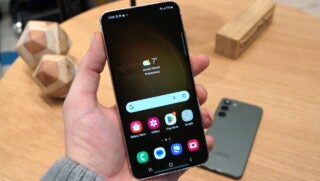
Is the Galaxy S23 worth it now that the Galaxy S24 is here?
-
The Android phone you'll want to own, even in 2024
-
Asus has lost the Zenfone's compact USP with the Zenfone 11 Ultra, and as such, it struggles to stand out
-
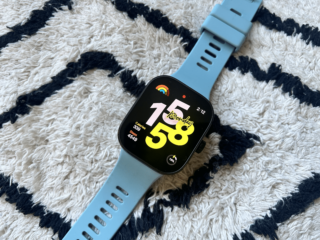
Redmi Watch 4 Review
Score
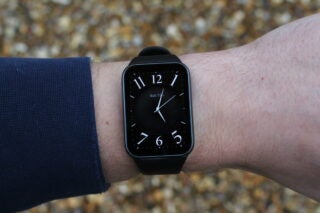
A cheap smartwatch with a big screen
-
Nothing releases its cheapest phone yet, but one that retains the brand's signature style
-
A compact pro mobile game controller
-
-
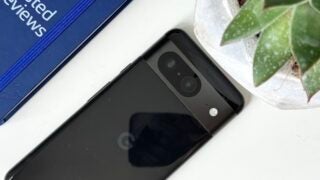
Google Pixel 8 Review
Score
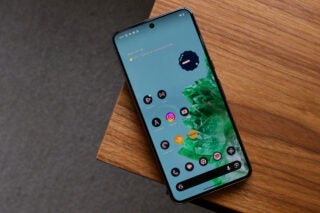
An undeniably strong camera-focused smartphone with charming AI features and exceptional long-term software support.
-
The best small Android phone isn't without its sacrifices
-
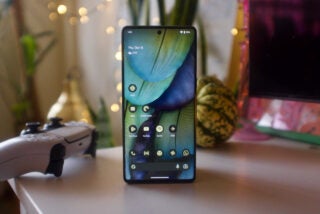
Google Pixel 7 Review
Score
Still a very tempting choice, even with the Pixel 8 now available
-
OnePlus Watch 2 Review
Score
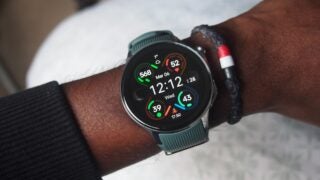
A smartwatch that pushes the boundaries of Wear OS
-
Google's most interesting phone yet

















Page 1 of 92